Validation of models
GAMA validates GAML models and reports errors, warnings and information markers. Validation results are available in the editor and in the Validation view.
Run validation
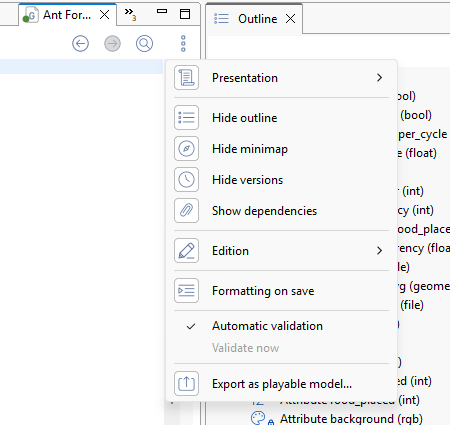
Automatic validation is enabled for each GAML file by default. The Editor options menu contains Automatic validation. When it is disabled for the open file, choose Validate now from that menu to validate it.
The Validation view lists workspace markers and lets you show or hide warnings and information markers. Its Validate all projects control starts a validation of the workspace projects. Open the view from Views > Show View... > Validation if it is not already visible.
Errors and warnings
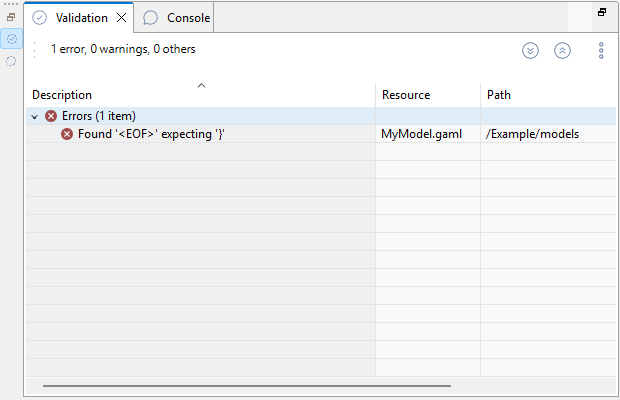
Syntax errors mean that GAML input cannot be parsed according to the language grammar. Semantic errors are reported when a parsed construct fails a language or model rule. The editor marks reported problems at their source locations; hover over a marker to read its message. The Validation view provides a workspace list of markers.
Warnings and information markers provide additional compiler feedback. Their display can be toggled from the More... menu in the Validation view. The view groups markers by type and displays their descriptions and locations.
Imported models
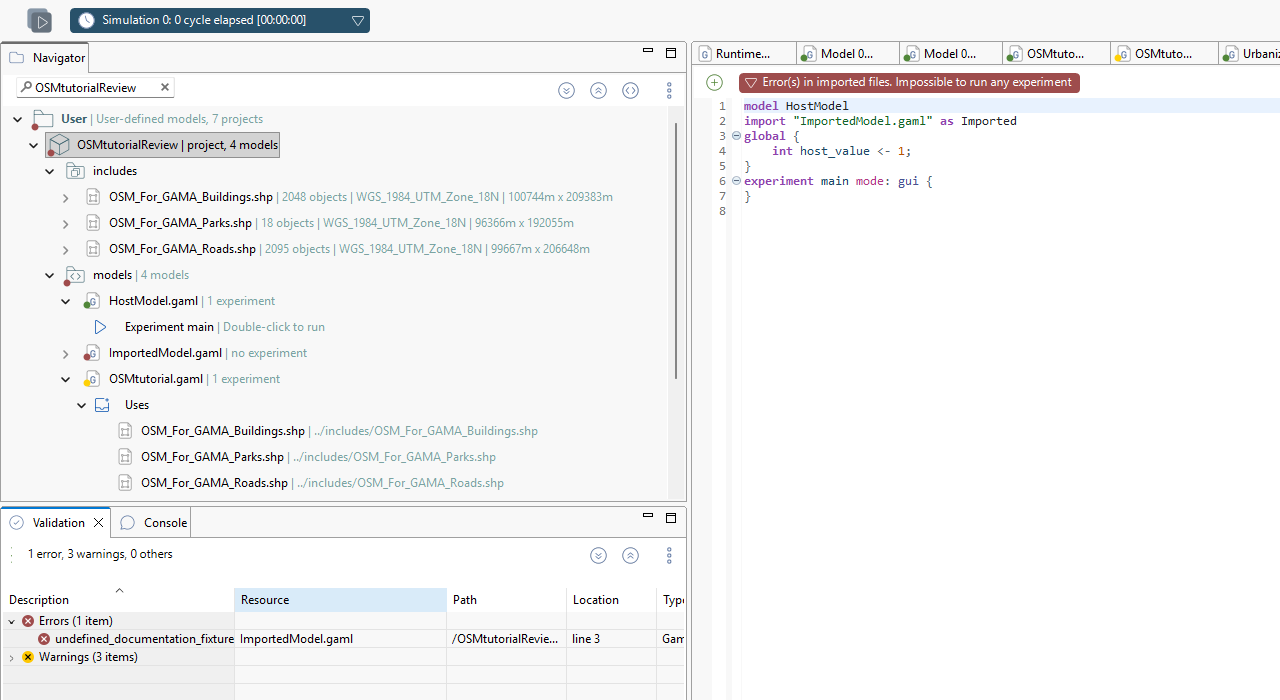
Validation also considers errors reported in imported models. The editor can report Error(s) in imported files when an import contains a problem. Follow the marker or its message to identify the imported resource that needs attention.
Change marker display
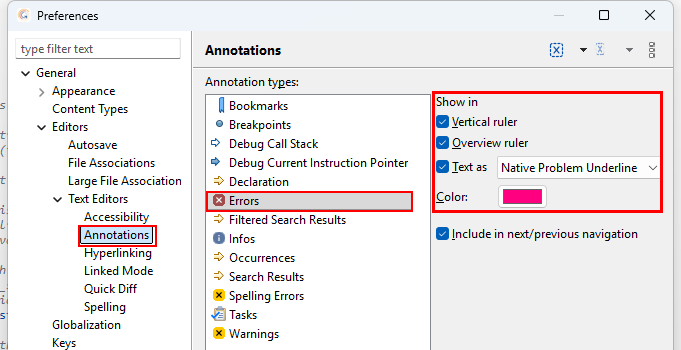
The advanced preferences inherited from Eclipse include text-editor annotation settings. Open Support > Preferences, choose Advanced... at the bottom of the window, then navigate to General > Editors > Text Editors > Annotations to configure how annotation types appear in the editor.
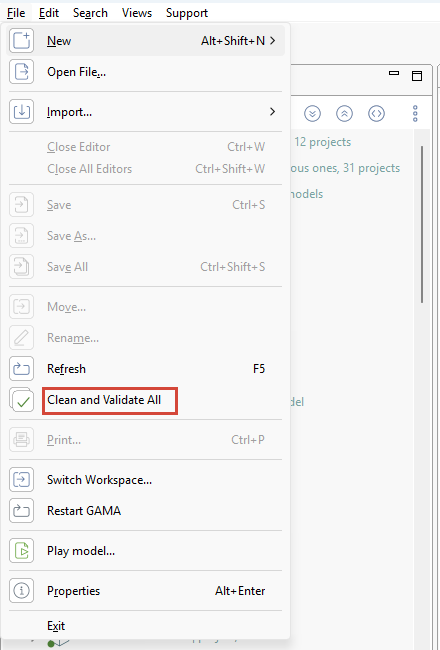
Clean and validate the workspace
Choose File > Clean and Validate All to erase the GAML resource index and run a clean workspace build. The command applies to the workspace; it can take time when many projects are present.