Launching GAMA
Start GAMA by opening Gama.app on macOS, Gama.exe on Windows, or Gama on Linux. If GAMA does not start, see Installation and Troubleshooting.
Launch from a terminal
The Windows and Linux archives contain the application files directly. Extract them into a dedicated folder and run the launcher from that folder. On macOS, open Gama.app; its executable is Gama.app/Contents/MacOS/Gama.
To run a model experiment directly, pass the model path followed by # and the experiment name or number:
Gama.exe path/to/model.gaml#experiment_name
The launcher names differ by operating system. See Running headless for command-line execution without the graphical interface.
Choose a workspace
GAMA stores projects and workspace settings in a workspace folder. On first launch, choose a folder in the workspace dialog. Enter its path in GAMA Workspace or select Browse... to find a folder. Select Remember to use that workspace automatically at the next launch. The dialog also lists previously used workspace locations.
GAMA can ask for confirmation before using a new or incompatible workspace. Read the dialog before continuing. To switch workspaces later or copy a workspace, see Changing workspace.

GAMA window
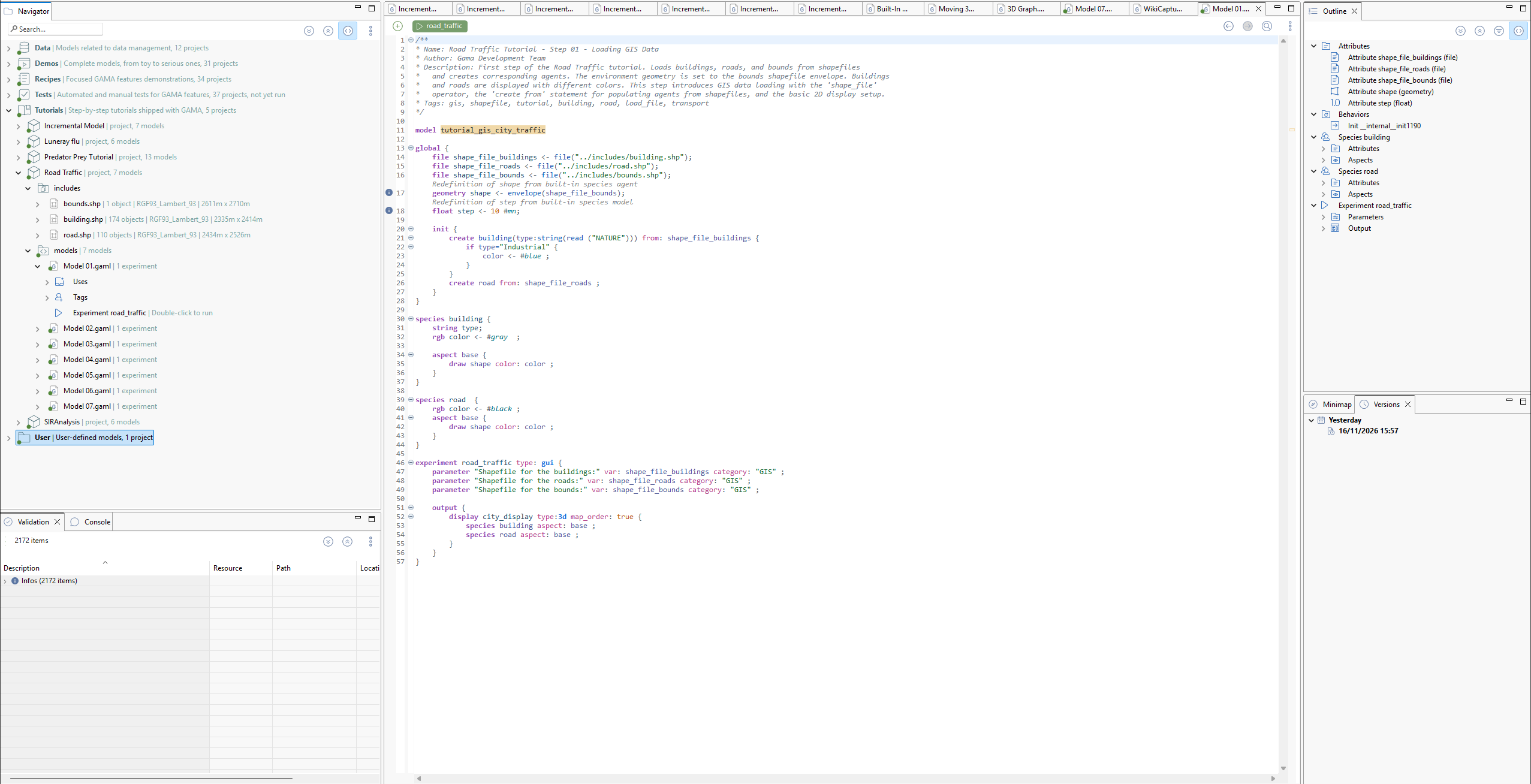
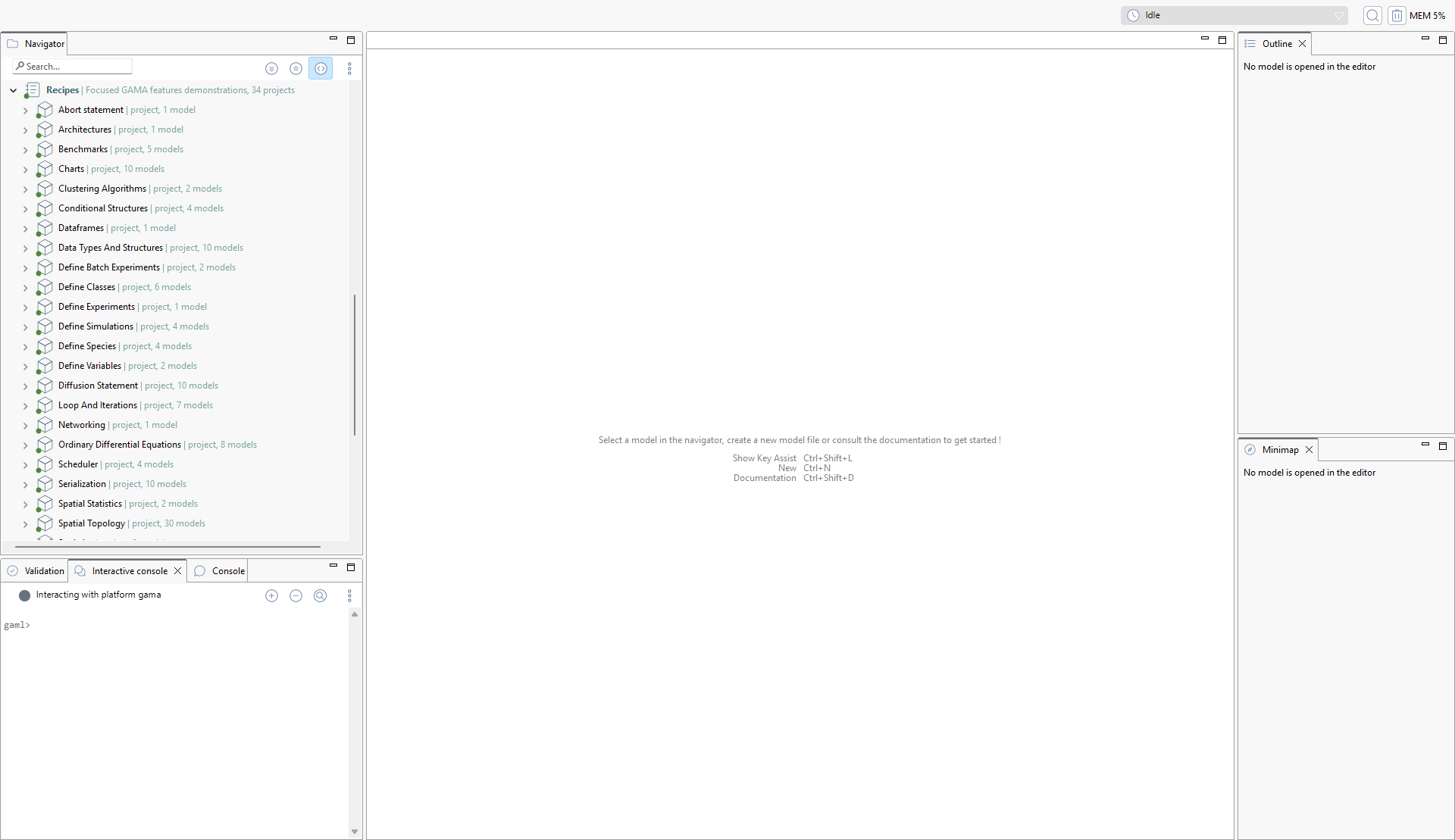
GAMA provides a Modeling perspective for editing models and a Simulation perspective for running and exploring experiments. The Modeling perspective includes the Models view, a model editor, Outline, Validation, and the interactive console. The visible arrangement can vary as views are moved or resized.
When no model is open, the Modeling perspective shows an empty editor with shortcuts for creating a model or opening the documentation. The Models view and other panes remain available around it.
From the Models view, you can create or edit a model, browse the model library, or import a project.