The Interactive Console
GAMA ships a view called Interactive console, recognisable to its gaml> prompt. It evaluates GAML expressions and statements directly, which is useful to test an operator, check a value, or look up the documentation of a keyword without leaving the editor.
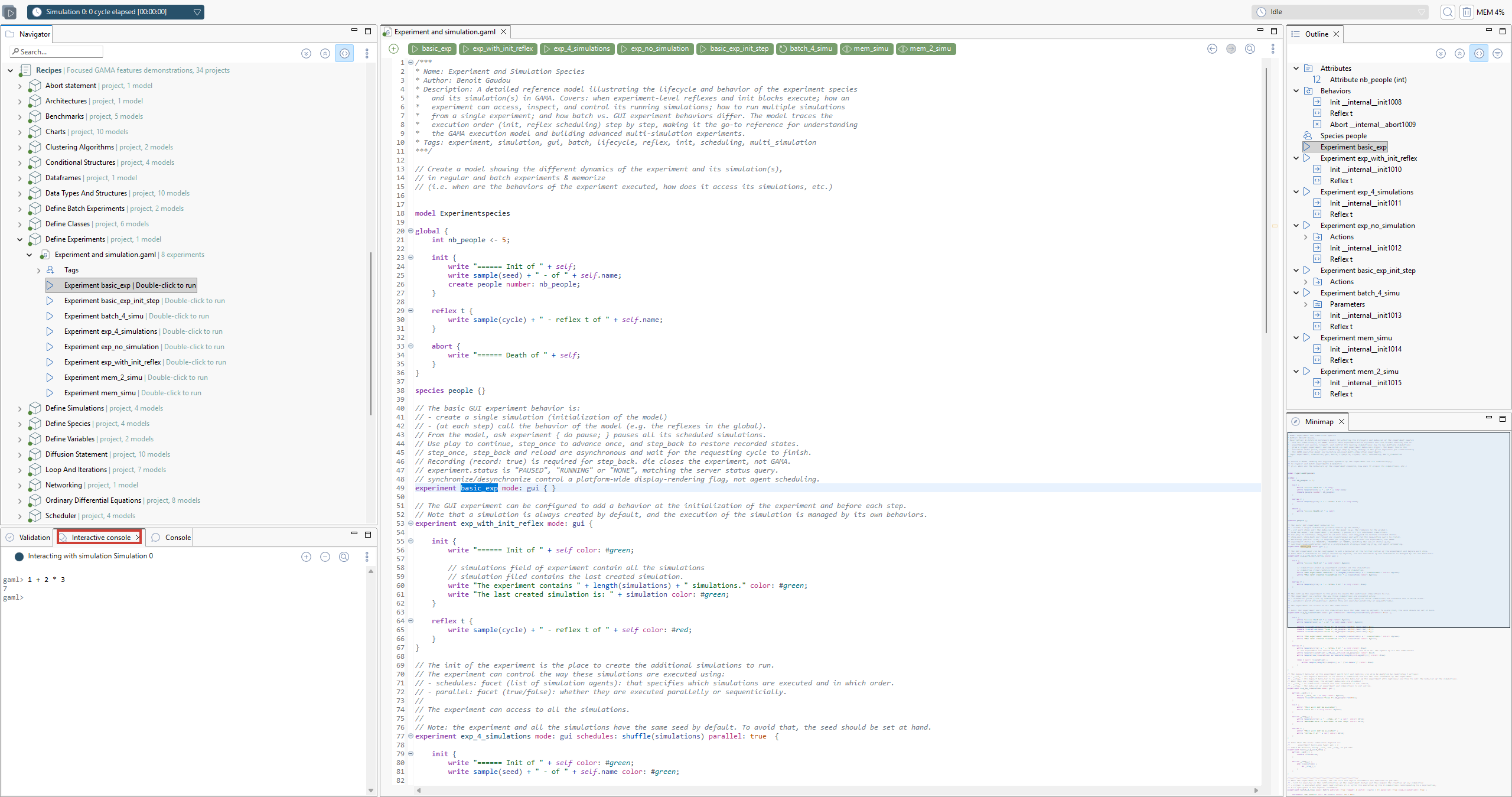

The view is available from Views > Show View.... When it is attached to a running experiment, the view header names the active simulation (Interacting with simulation Simulation 0); without an experiment the header identifies the platform (Interacting with platform gama). The view does not print the reminder of its three inputs (an expression to evaluate, ?keyword to look up documentation, and the arrow keys to browse the history): it is given as a tooltip on the prompt line, and in the Console help entry of the menu of the view.
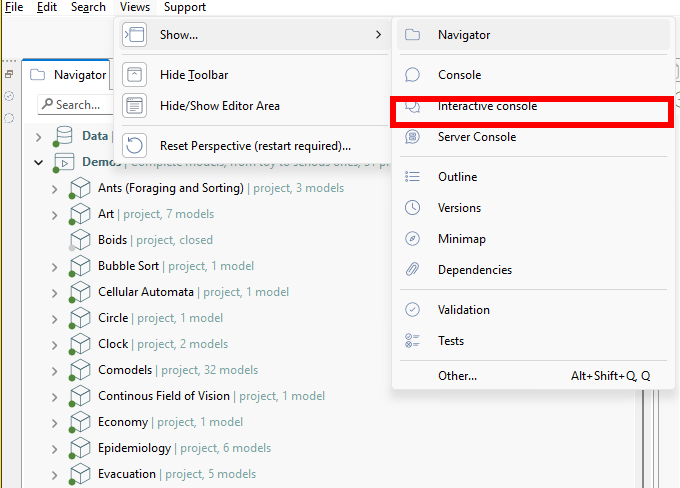
Evaluating an expression
Type an expression after the prompt and press Enter. The expression is evaluated in the context of the experiment that is currently running, and the result is printed below the prompt:
In a running experiment, the console has access to the agents, the species and the global variables of the model, as if the expression had been written in the model itself. Variables declared in the console remain available to later commands in the same console session and active experiment:
gaml> int console_value <- 40;
gaml> console_value + 2
42
Changing the active experiment clears these console variables. When no experiment is running, GAML expressions are not evaluated; the console reports that an experiment must be started first. The ?keyword form still works because it reads documentation from the compiler rather than a running agent.
Looking up the documentation
Prefixing a keyword with ? prints the documentation of the corresponding operator, statement, skill or facet, together with its signature and the type of the value it returns:
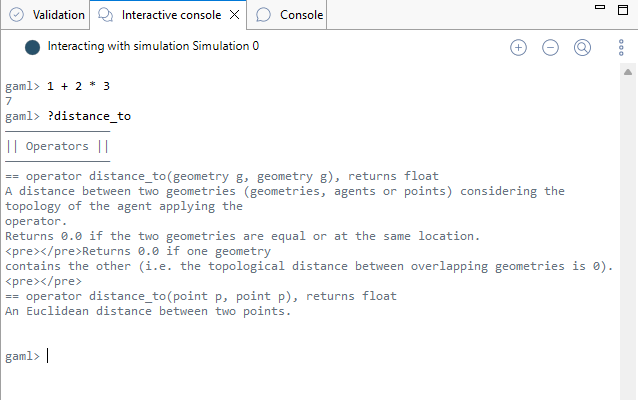
This is the quickest way to check the exact signature of an operator. The same keywords are listed, with links to their documentation, in the exhaustive list of GAMA keywords.
Browsing the history
The up and down arrow keys walk through the expressions already entered, so that a command can be recalled and modified rather than retyped.