Exporting Projects As Simulation Launchers
The GAMA Platform is an Integrated Development Editor (IDE), an expert software developed and designed for re-searchers and modelers. Therefore, the use of a GAMA simulation requires some prior knowledge on how to use such a platform before being able to execute a model. This comes as a constraint when the project needs to be shared to people with no background or expertise in computer science or software development (eg. other researchers, stake holders, etc). Gama's export plugin is meant to answer the need of a simple approach for sharing GAMA projects as independent applications that can run simulations without needing the GAMA platform, Java or any prerequisite to be installed on the target machine.
What is exported
The export plugin builds a modified, lighter copy of your own installation of GAMA, which contains the project of your choice. This copy does not contain any editing features and automatically lauches a simulation on startup. This newly created application allows people with no expertise to use your models.
How create an export
Before creating an export, make sure every models you want to export are compiling properly.
Keep in mind that exported applications only work for the operating system they were built on !
Therefore, you need to build the export on Windows if your target platform is Windows, and it's the same for MacOS x86_64, MacOS aarch64/arm and Linux.
User interface
You can export a single model or a whole project. You will be able to select which experiments you want export in your target project or model.
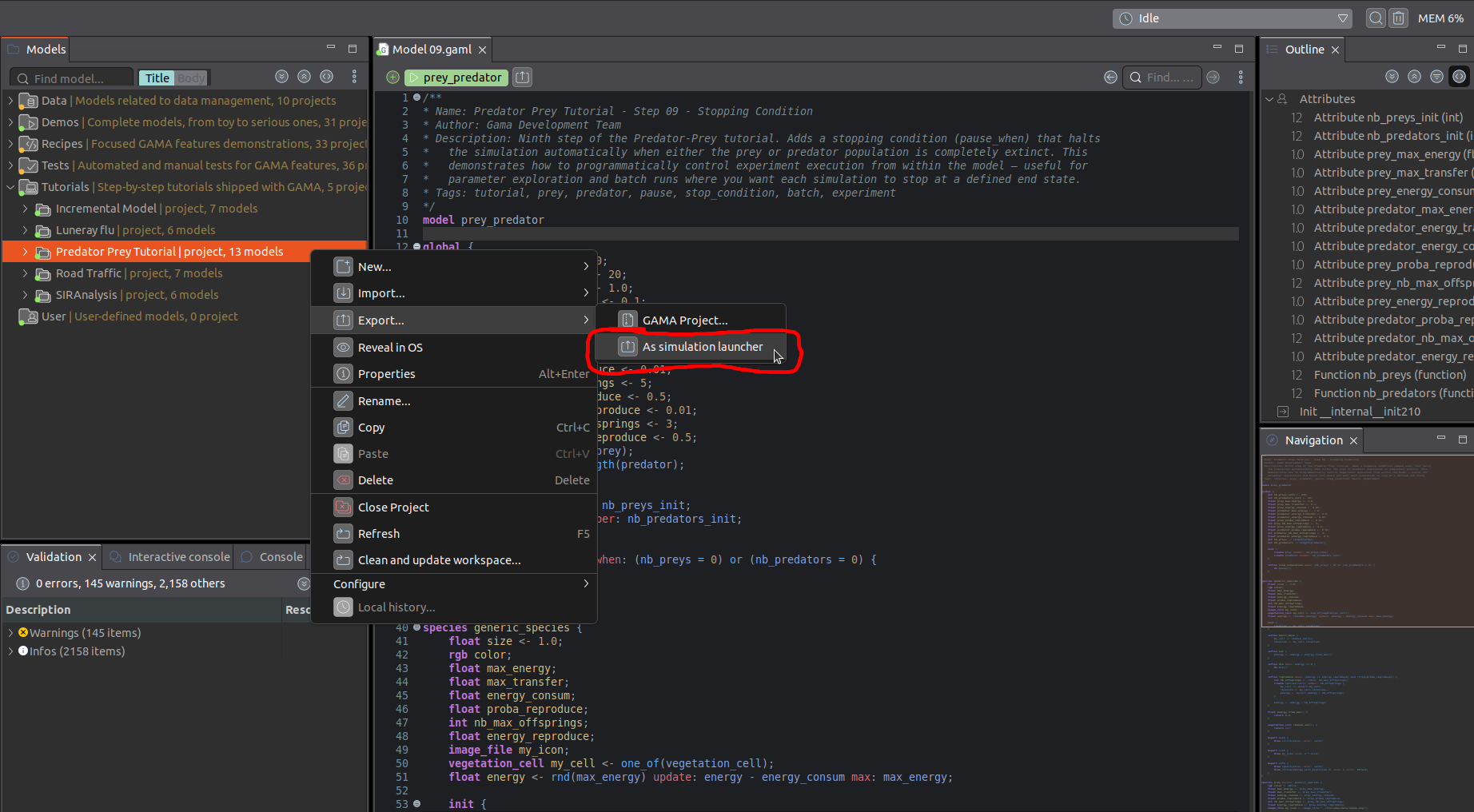
You can open the export configuration menu for a project by performing a right click on the target project in the navigation panel, and left click on export, then export as a simulation launcher :
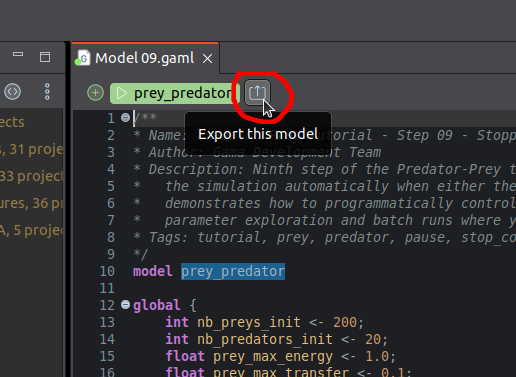
You can open the export configuration menu for a single model by clicking on the button located next to the simulation launching button of the model opened in the editor :
Configuration
Here is a screenshot of the configuration menu for a single model :
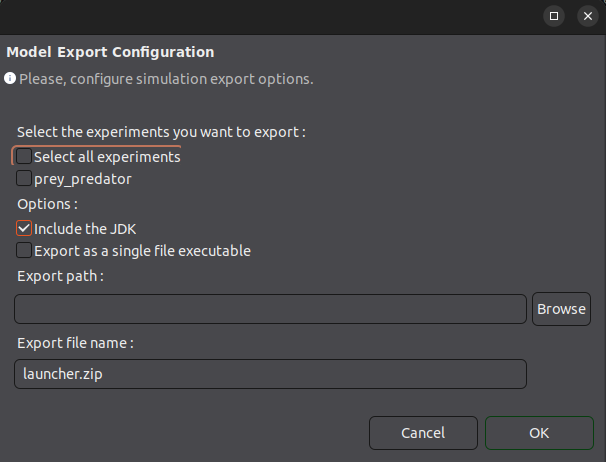
You can select the experiments you want to keep in the exported application.
When selecting the exported experiments in a projects, the path to the model it is associated with is displayed next to the experiment name :
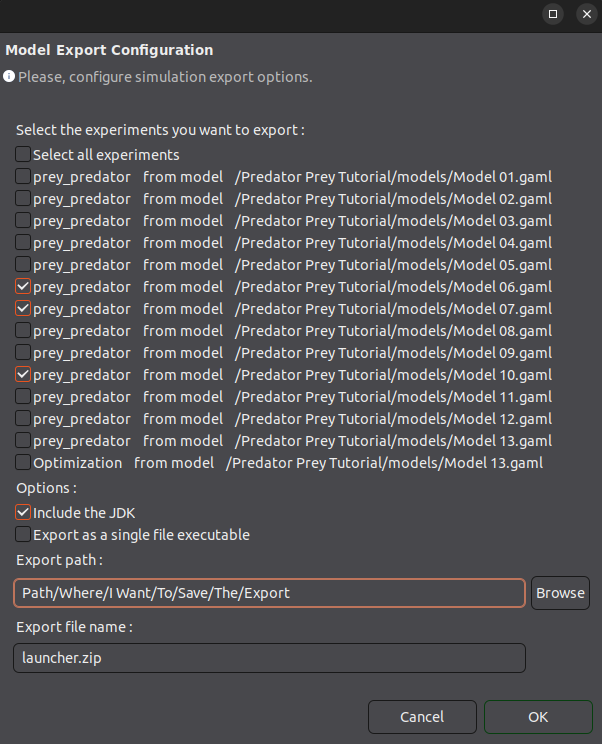
You choose to include your own Java Development Kit (JDK) in the exported application, to remove the need of Java installed for running your export.
The export configuration menus are identical on Windows an Linux. MacoS doesn't feature the single executable file option, as it is not needed.
Models or projects can be exported in two formats :
- zip archive
- single file executable
If the export format is a single file executable, the final user just need to double click on the application to start it.
If the export format is a zip archive, the final user must have a zip extraction software installed on his machine, and extract the content of the archive. He must then execute the entrypoint Gama.exe on Windows or Gama on Linux.
If the JDK is not included in the export, the user will need a Java environement to be installed on his machine before starting the application.
If the export format is a single file executable and the zip is included, the final user can start the application without any prerequisites.
Creation
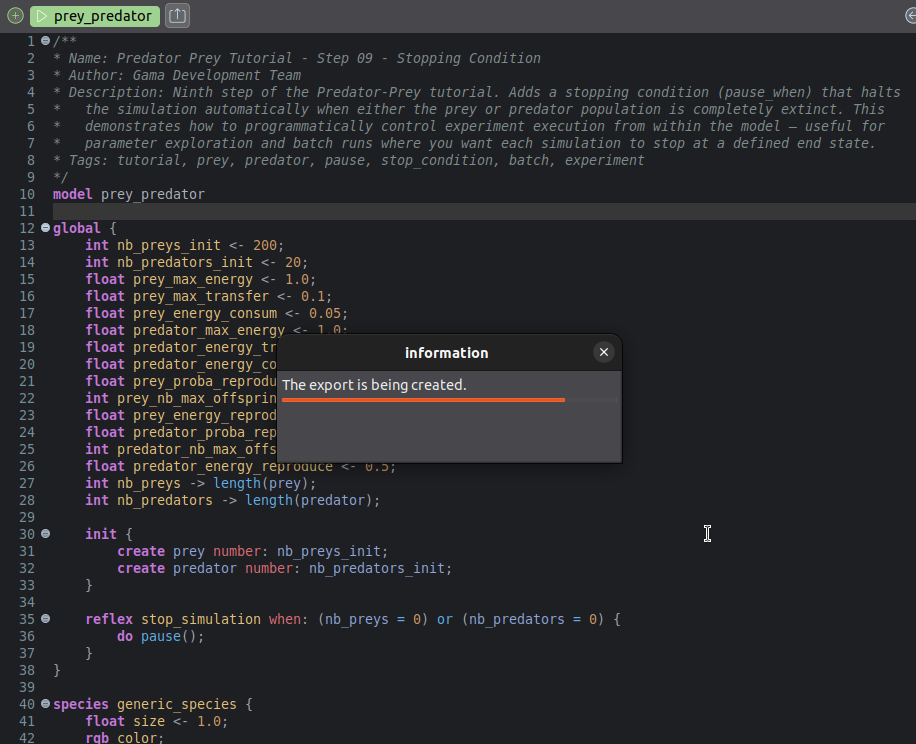
When you click OK, the export will begin and a progress bar will show up. The exporting process should last less than 15 seconds if it doesn't include the JDK. This duration is roughly doubled if you choose to include the JDK :
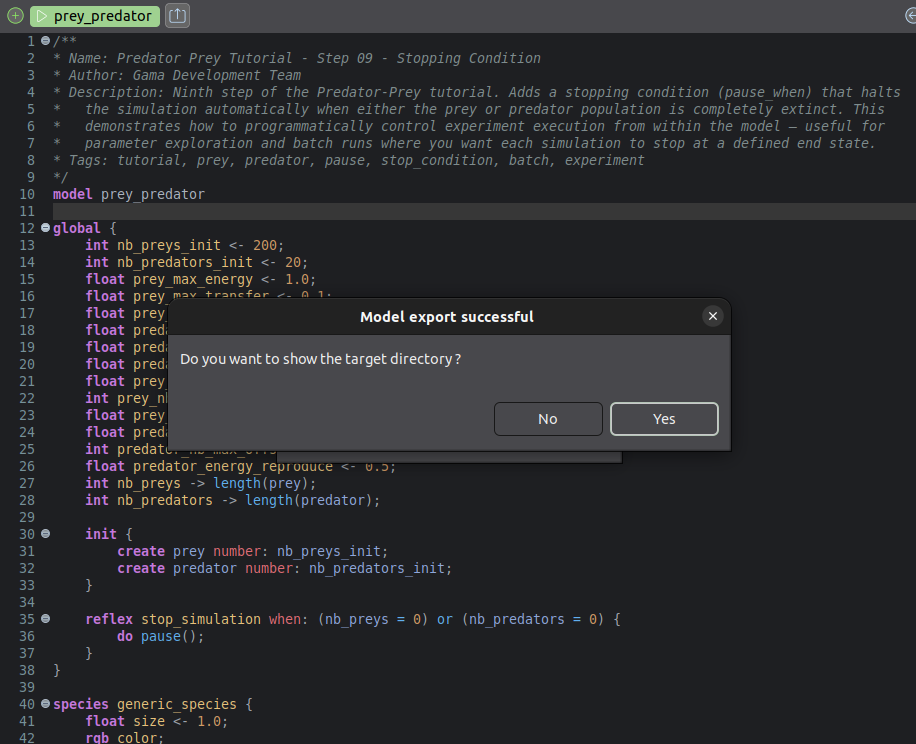
When the export is done, a information dialog will pop up and give you the possibility to open your file explorer in the directory where the export is located :
How to use the exported application
Starting the application
When starting the application from a single file executable, you may wait a few seconds before any visible loading appears. This time depends on the host computer and is increased if you included the JDK. On modern computers, it is usually very fast, and less than 2 seconds. This loading time only happens for the first startup of the export.
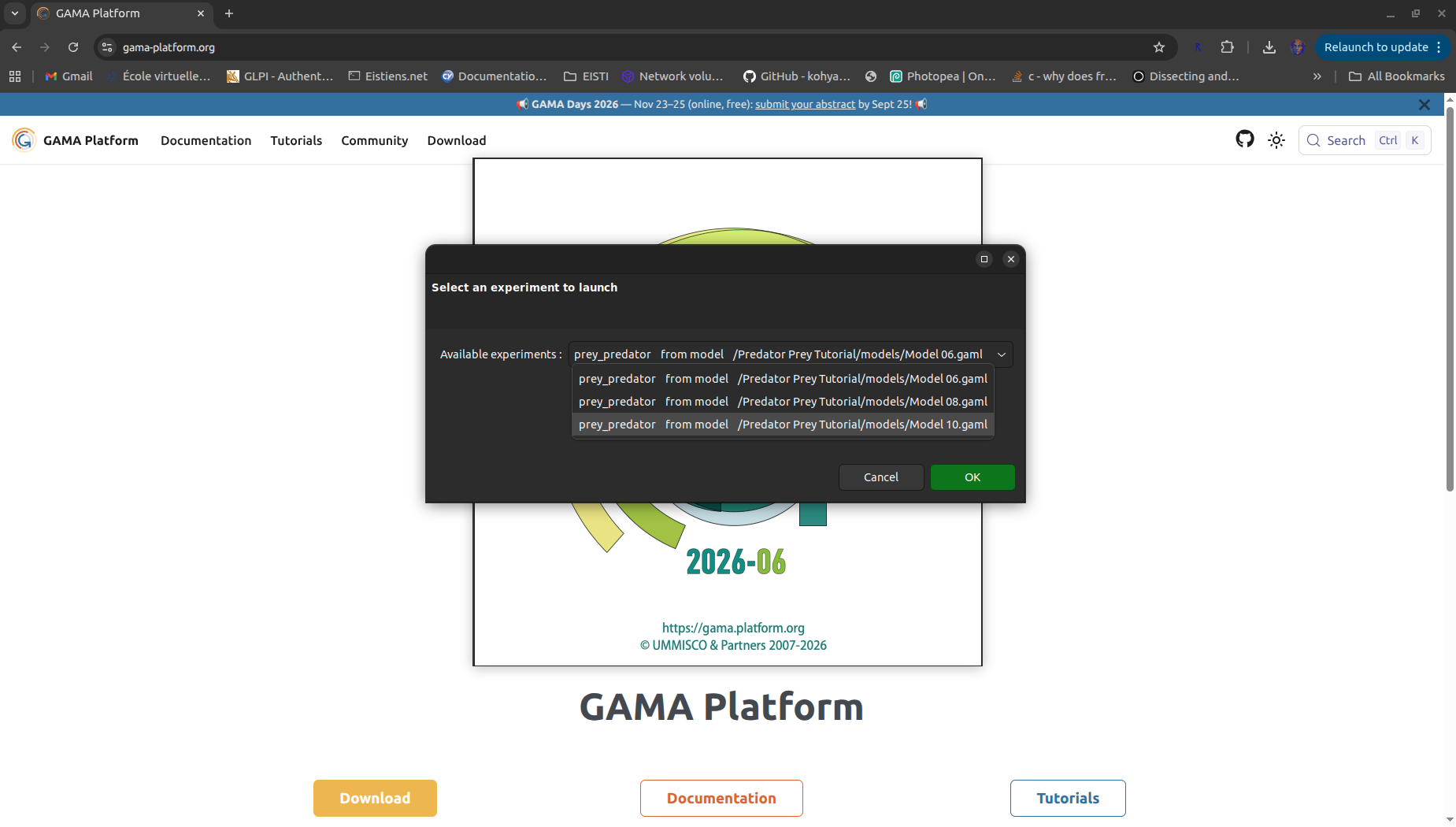
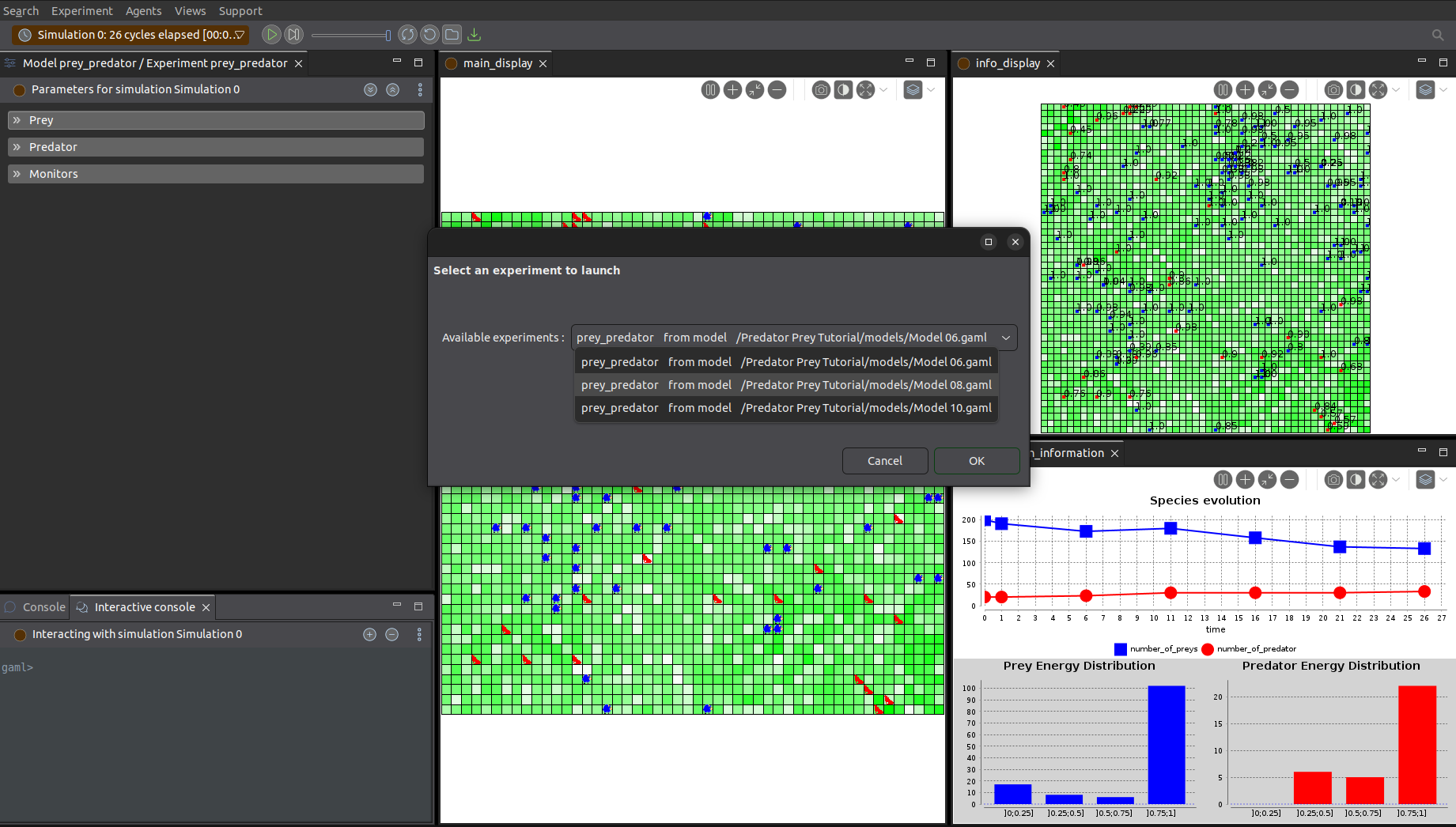
if a single experiment was selected when configuring the export, the application launches the associated simulation immediately. If multiple experiments were made available, a dropdown menu shows up and allows the user to select what experiment he wants to launch :
MacOS
To execute the exported application, double click on the zip archive to extract its content. An app with the name you defined when configuring the export will appear with the GAMA icon. You can double click on it to start the application.
On another computer than then one which built the export, the MacOS Gatekeeper will prevent the exported application to execute. It can be bypassed by entering the following command in the terminal :
xattr -cr path/to/the/launcher.app
Switching experiments
In the toolbar, a button allows to switch between experiments without leaving the simulation perspective :
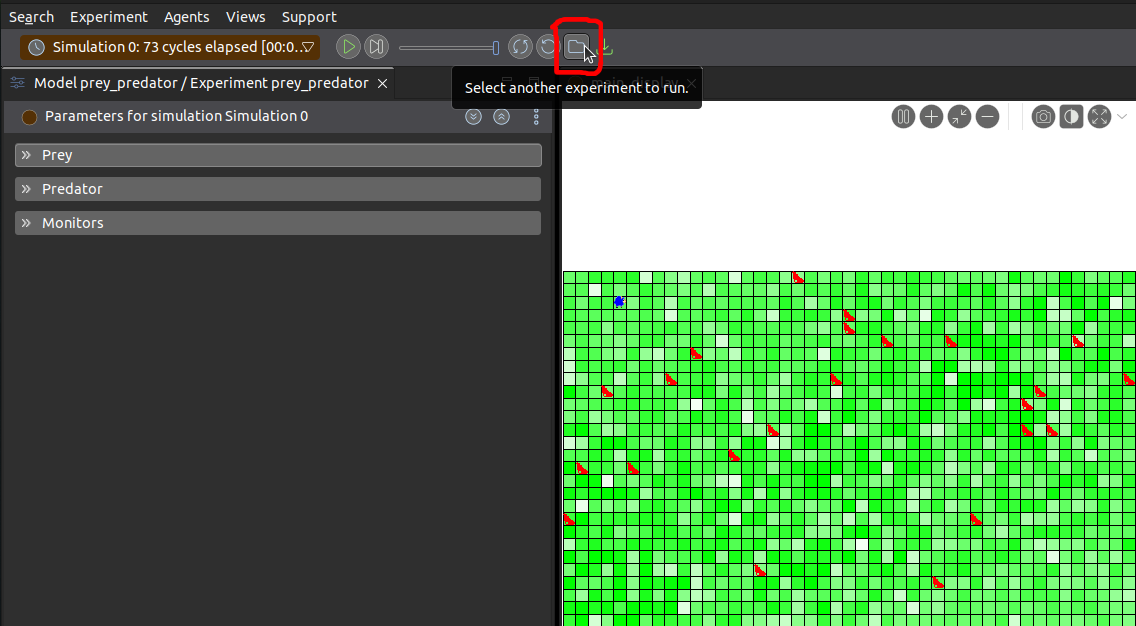
When you click on it, a selection menu will appear, featuring a dropdown menu where every available experiments are displayed.
Saving artifacts
Simulations may produce files. The saving button allows users to save them in the directory of their choice :
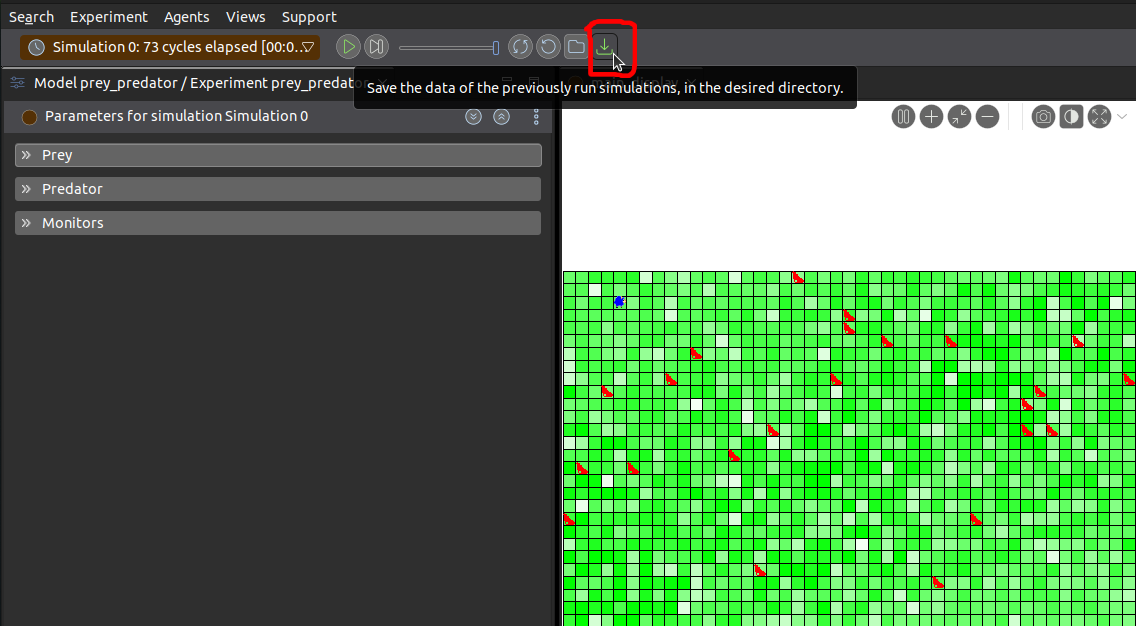
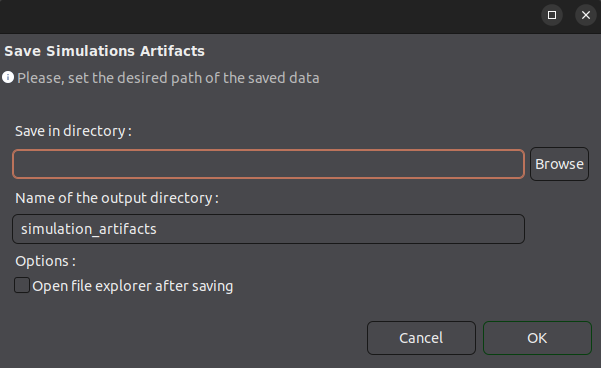
It opens a small configuration menu allowing users to choose where to save the files, and whether they would like to open their file explorer in the target directory :
If a user attempts to close the application with unsaved files, a warning menu will pop up and give the opportunity to save them before leaving :